Keep favorites, and open a set of files together
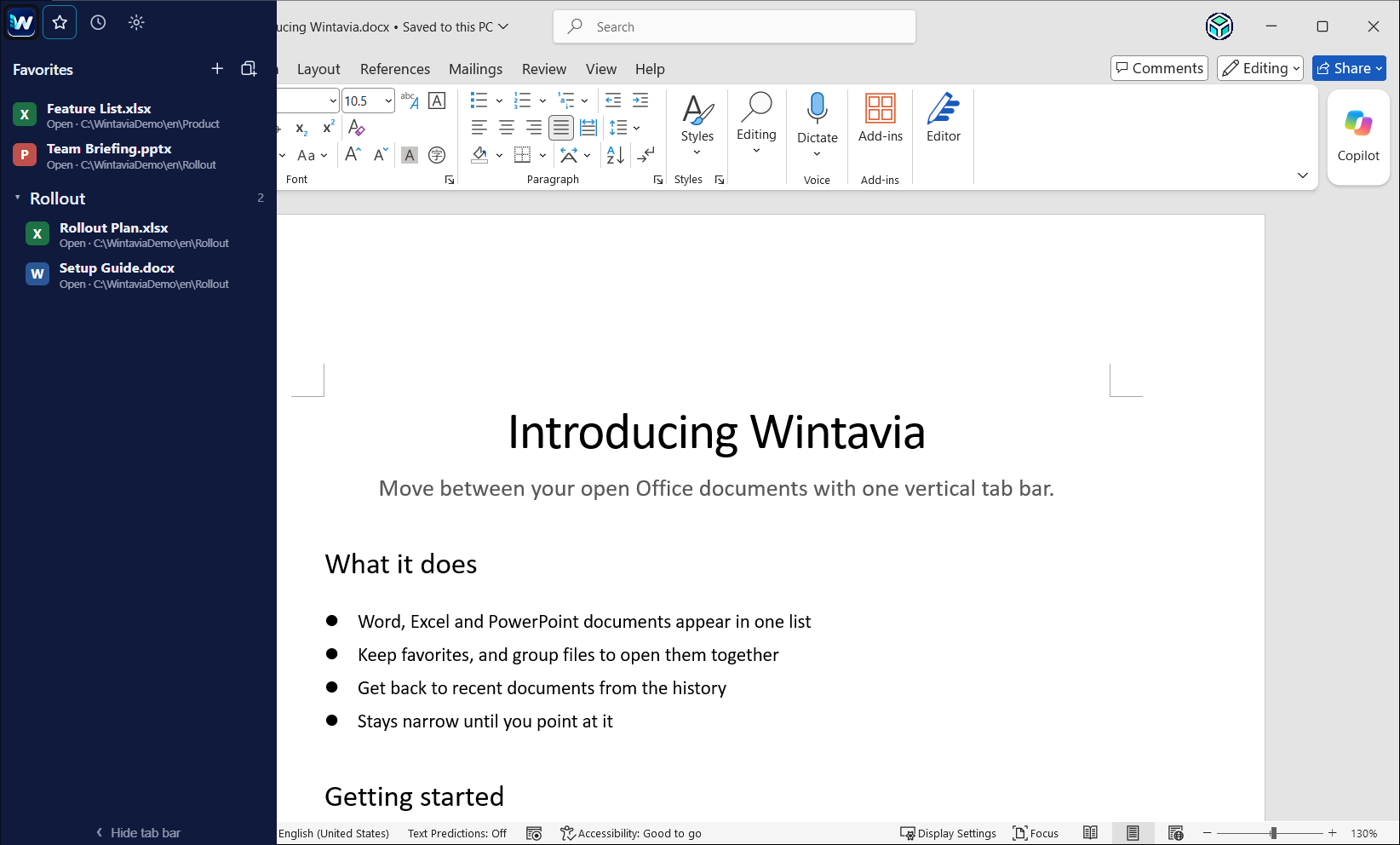
Star the files you use often. Put related files in a group — for example, the files for the monthly close — and open them all at once.
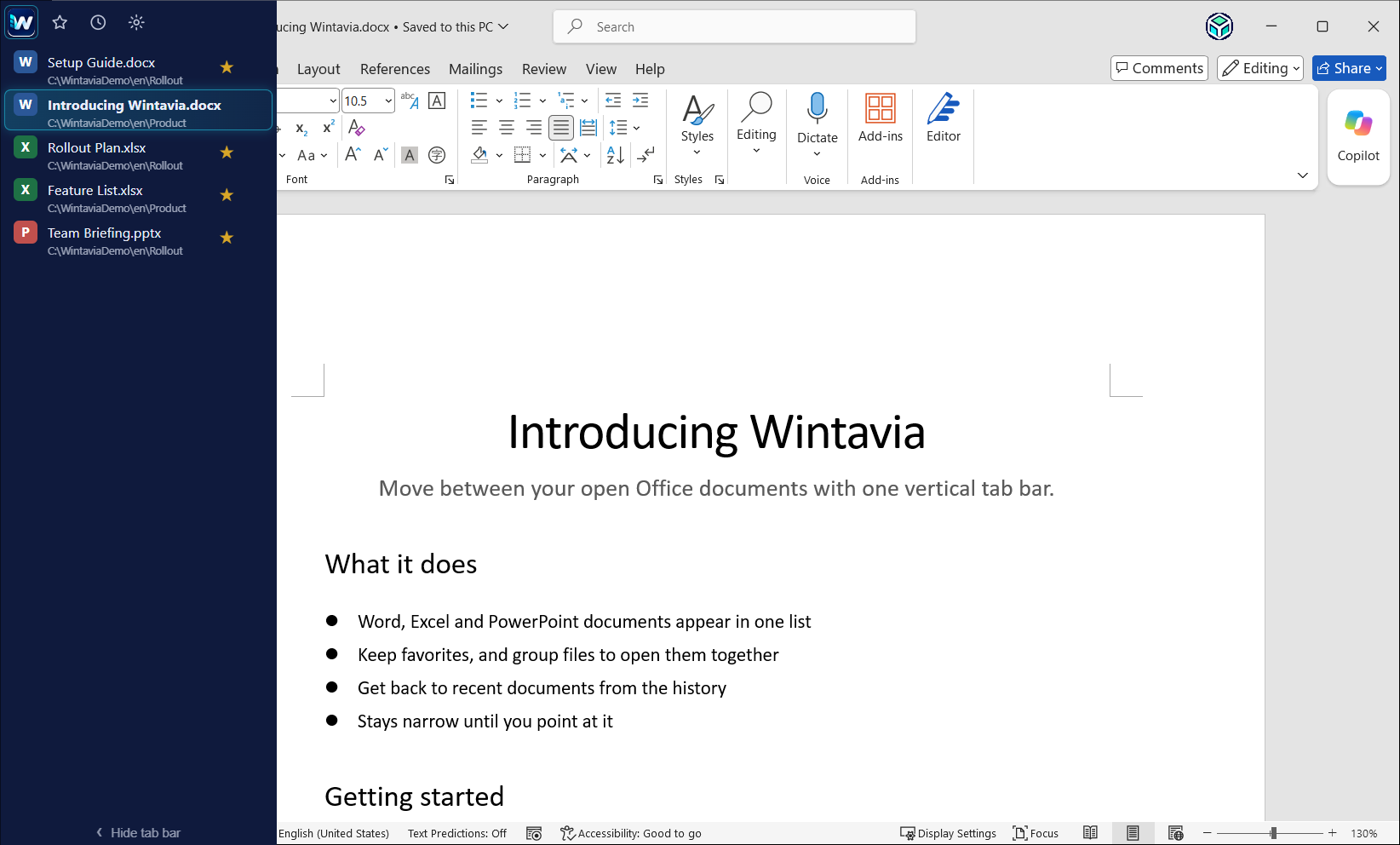
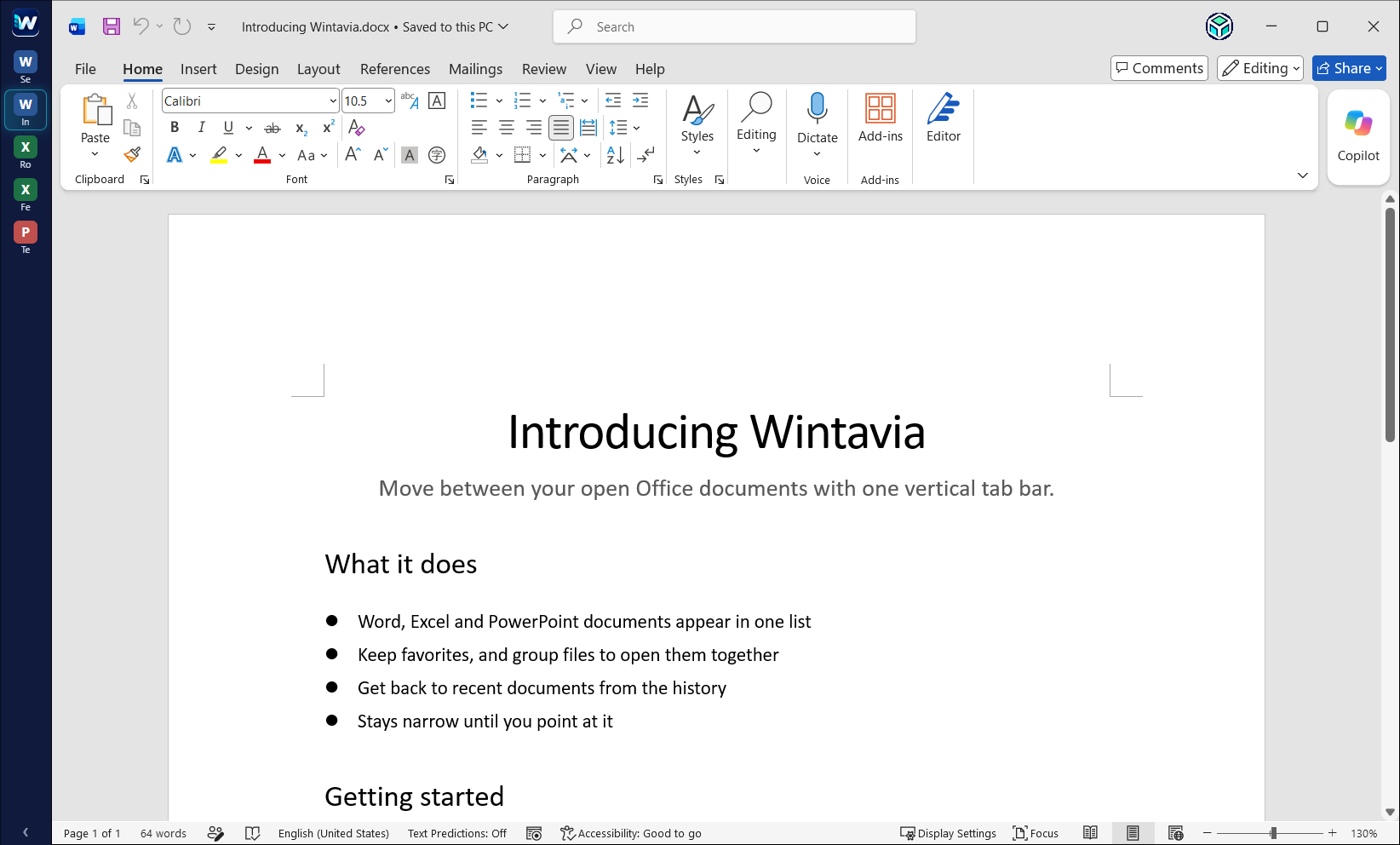
Wintavia shows the Word, Excel and PowerPoint documents you have open in a slim tab bar beside the window. Click a tab to switch — even between separate Office windows.
For Windows 11 and desktop Microsoft Office. No administrator rights needed.
Star the files you use often. Put related files in a group — for example, the files for the monthly close — and open them all at once.
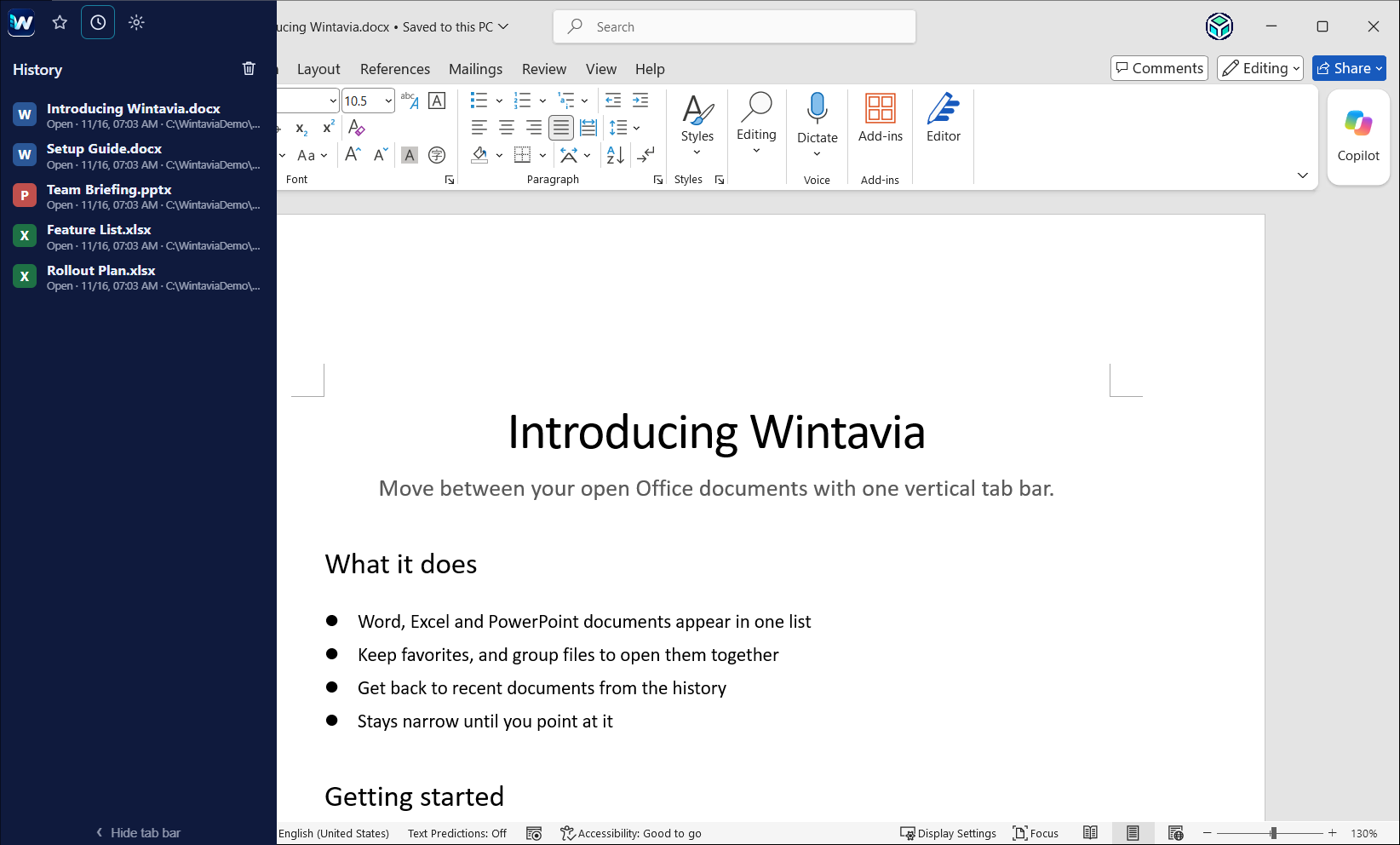
The history shows the documents you opened recently, so you can open them again in one click. You can turn the history off in the settings.
The tab bar stays narrow and widens when you point at it. Hide it from the taskbar icon at any time, and your Office windows go back to where they were.
A command-line tool and an MCP server let scripts and AI assistants (such as Claude Code or Codex) list your open documents, read them and switch between them.
Editing, saving and closing are off until you allow them in the settings. An edit is applied only if the document has not changed since it was read, and macros never run.
Wintavia does not connect to the internet. Document information is shared only with the tab bar and tools on this PC. Logs do not contain document names, paths or contents.
If you connect an AI assistant, what it reads is sent to that AI service.
Windows may show “Windows protected your PC” because the publisher is not yet recognized. Choose “More info”, then “Run anyway”. You can check the file with the SHA-256 values listed in the release.
Download for WindowsPlease post on GitHub Issues (a GitHub account is needed). Posts are public, so do not include personal or company information.
Open GitHub Issues