
In this guide
- Star a file to keep it in your favorites
- Group files you use together
- Open a whole group at once
Stop digging through folders for the same files every week. Star them once, and they’re one click away in the tab bar.
What you get
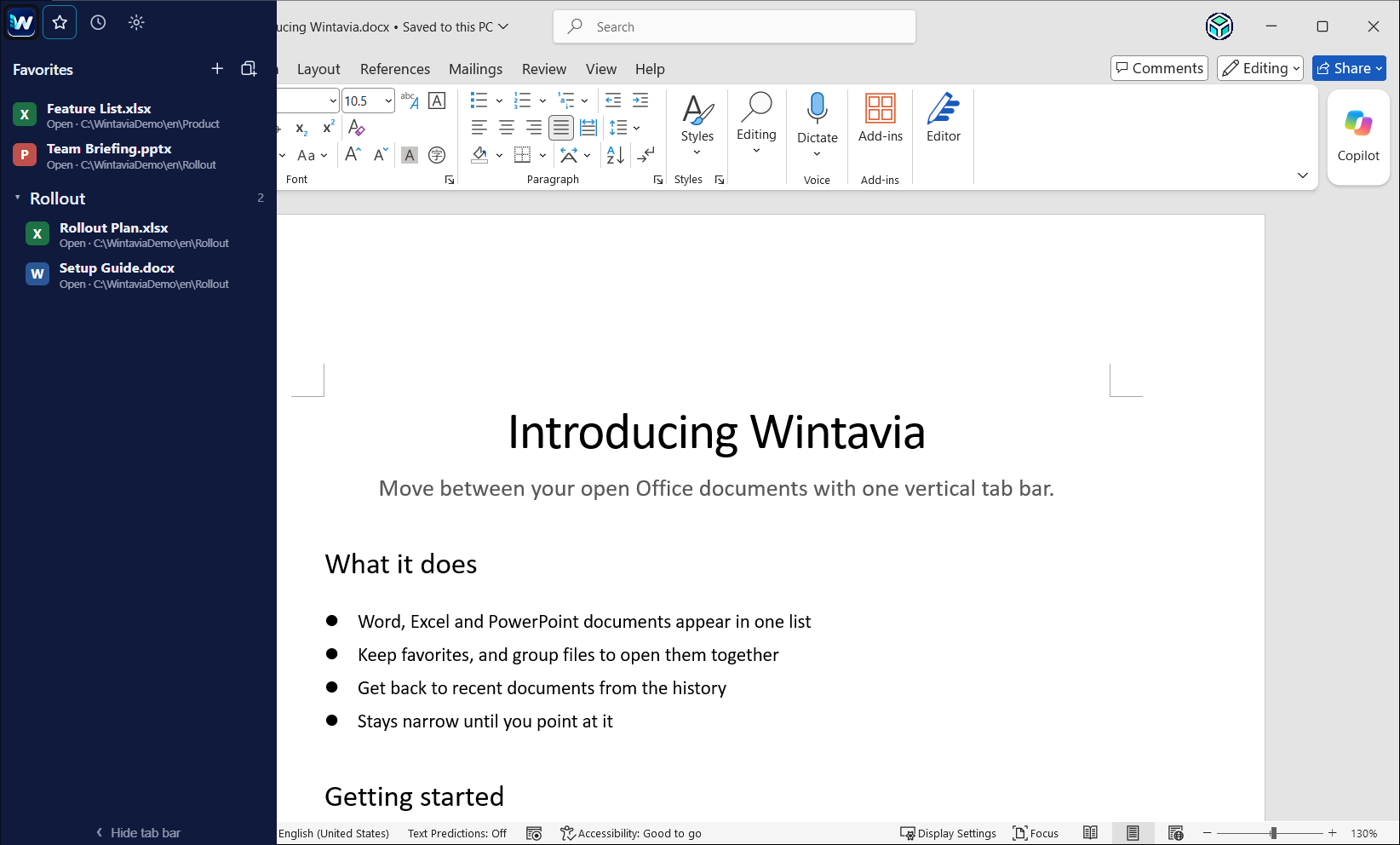
- One-click access. Click the star icon at the top of the tab bar to see your favorites. Click a file to open it — or switch to it if it’s already open.
- Groups for files that go together. Keep a project’s spreadsheet, document and deck in one group, and open them all with a single click.
- Your order, your way. Drag files to reorder them. Removing a favorite never deletes the file.
How it works
- Star a file. With the file open, hover over its tab in the tab bar and click ☆.
- Make a group. Open just the files you need for a project, then click the “New group from open tabs” icon at the top of the favorites list and type a name. Unsaved files aren’t added, so save them first.
- Add more later. Right-click a file in the favorites list and choose “Add to group”.
- Open the group. Click ▶ (“Open all”) next to the group name.
To rename or delete a group, right-click its name.
Try it on your PC
Wintavia is free and works with Windows 11 and desktop Microsoft Office.
Download it free