
In this guide
- Every open file in one list, whatever the app
- Click to switch, drag to reorder
- Right-click to close, open the folder or copy the path
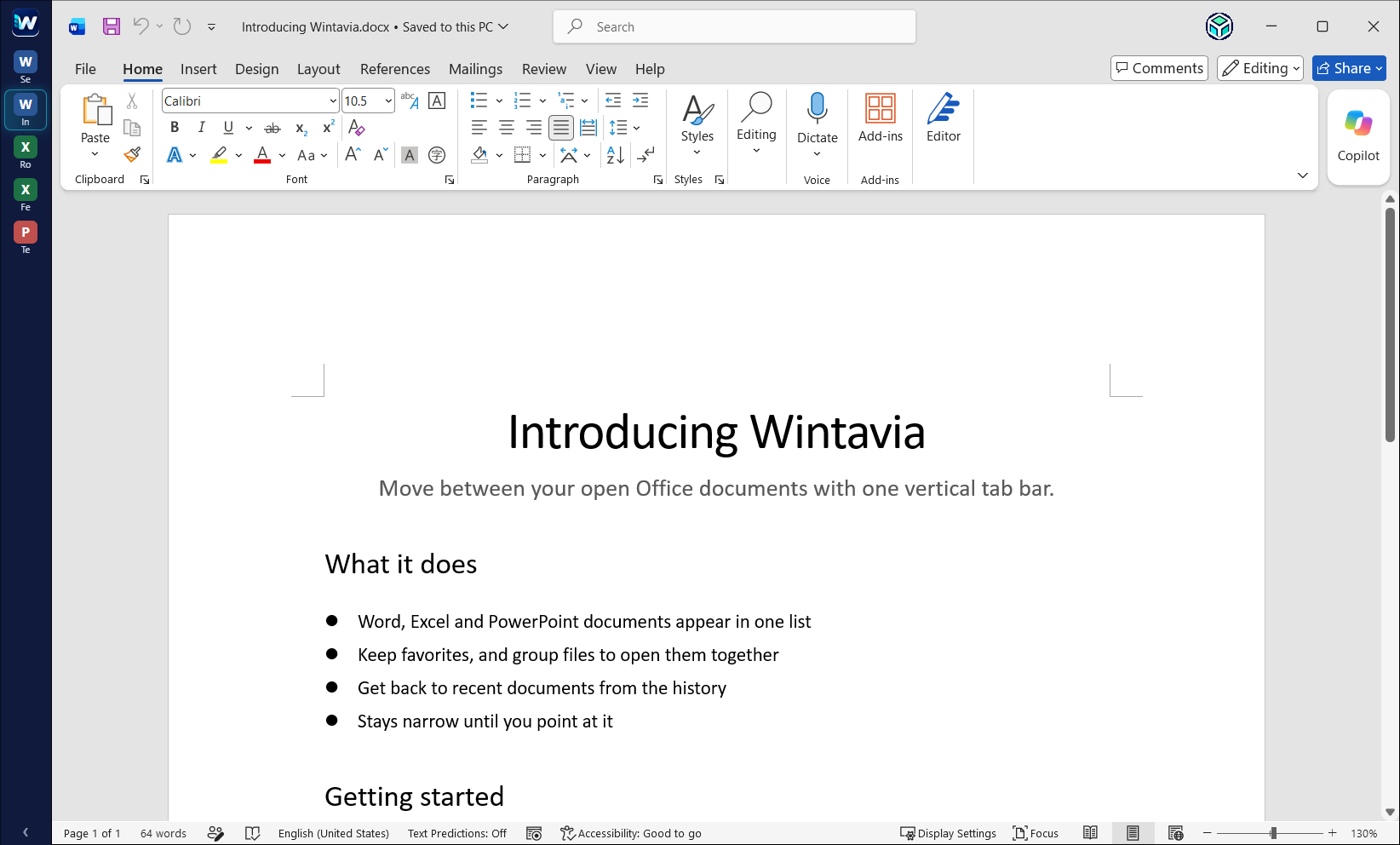
Start Word, Excel or PowerPoint with Wintavia installed, and a slim tab bar appears beside the window. Every open file is listed there, whatever the app.
What you get
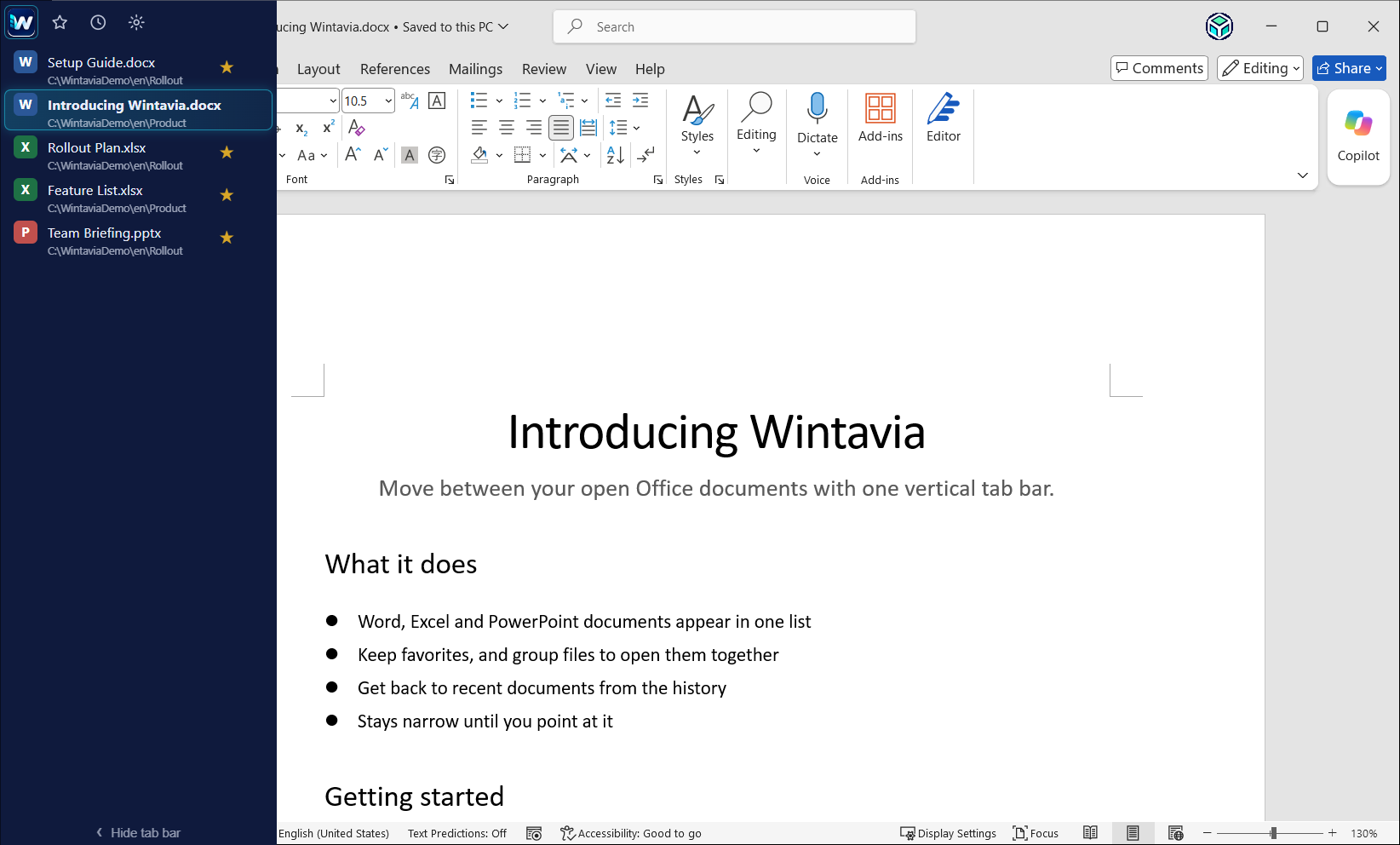
- Out of your way. The bar stays narrow and widens when you point at it, showing each file’s name and folder. Drag its edge to set the width.
- One click to switch. Click a tab to bring that file to the front — even across separate Office windows. Snapping and Windows key shortcuts work as usual, and the bar moves with the window.
- Your order. Drag tabs to reorder them. Wintavia remembers the order next time.
Right-click for more
Right-click a tab to:
- “Close this document”
- “Open containing folder”
- “Copy” the full path or file name
- Use “More ways to close”, such as “Close other documents”
To just close a file, hover over its tab and click ×. If it has unsaved changes, Office asks whether to save, as usual. Unsaved files are marked on their tabs.
Hide it and bring it back
Click “Hide tab bar” at the bottom of the bar. The bar disappears and your Office windows go back to where they were. To show it again, click the Wintavia icon in the system tray.
Try it on your PC
Wintavia is free and works with Windows 11 and desktop Microsoft Office.
Download it free